← Year 6 computing worksheets

Year 6 Sensing movement with physical computing worksheet

“Meet the micro:bit” is free to print, with no account. It is the first sheet in the Year 6 computing unit “Sensing movement with physical computing”, for children aged 10 to 11, and takes about 20 minutes.

Print it on A4. The child's pages come first; the answers, and what each wrong answer tells you, are on the grown-up page that follows. Weeks 31 to 36 of the year, 6 sheets in the unit.

Free sample · answers on the last page

Meet the micro:bit

Name: ____________ · Date: ____________
Year 6 · Computing · about 20 minutes
Answers are on the grown-up page

Today I can explain what a micro:bit is and how a program gets onto it.

A Look back3 min

  1. 1.

    The robot must reach the star. Which arrows take it there?

    → → →↓ ↓ ↓→ → ↓
  2. 2.

    The same steps happen again and again. What is this called?

    ClapClapClap
    a loopa sensora rock
  3. 3.

    The robot must reach the star without hitting the rock. Which arrows get it there?

    ↑ → → ↓→ ↑ → ↓→ → → ↑

B Watch me, then you4 min

Sam wants a heart to show on the micro:bit when button A is pressed. What order should Sam follow?

Watch me
Write the programTest in the emulatorCopy to micro:bitPress A: heart shows

First, write the program on the computer.

Next, test it in the emulator, which is a tool on the computer.

Then copy it to the micro:bit with a USB cable.

Press A on the real board and the heart shows.

Now you
  1. 1.

    Which step comes before copying the program to the micro:bit?

    WriteCopy
    Test in the emulatorPaint the caseUnplug the cable
  2. 2.

    Which tool lets you check a program without a real device?

    The emulatorThe accelerometerThe LED display
ComputerUSB cablemicro:bit

C Your turn6 min

Each row asks about one part of the micro:bit. Read the question, then answer.

InputProgramOutput
  1. 1.

    Join each part to its job.

    LED displayAccelerometerA and B buttonsUSB cable
    Moves the program to the devicePress to trigger actionsShows pictures and lettersDetects shaking or tilting
  2. 2.

    A heart shows on the micro:bit's lights. Which part is showing it?

    LED displayAccelerometerUSB cable
  3. 3.

    The board is tipped sideways and the program reacts. Which part noticed the tilt?

    A and B buttonsAccelerometerLED display
  4. 4.

    Write each card in the right column of the table.

    Dragging blocks into programming areaTesting in the emulatorShowing a pattern on the LED displayShaking the board to trigger a block
    On the computerOn the micro:bit

Say it out loud: Which parts sense things, and which parts show or send things? What pattern did you notice?

D Spot the mistake3 min

Kit says: “Every time I switch the micro:bit on, I have to copy my program onto it again.”
Copy the programUnplug the boardSwitch it on again
  1. 1.

    What should Kit know about the program on the micro:bit?

E Think deeper3 min
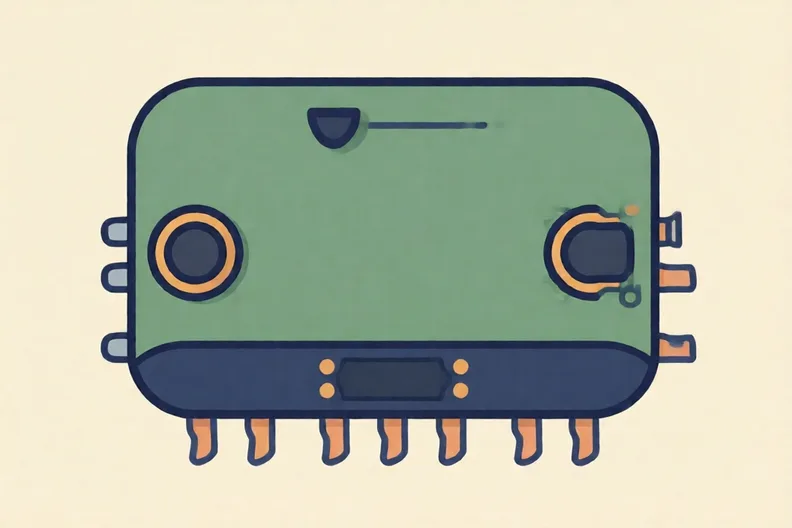
Close-up of a micro:bit board with its two push buttons at the edges
  1. 1.

    Your program works on the emulator. Why should you still test it on a real micro:bit? Give one reason.

How did it feel?

I can do it Nearly Not yet
StudyDen · Year 6 · Computing · Sensing movement with physical computingAnswers are on the grown-up page

For the grown-up

Meet the micro:bit · 2 minutes to read

Answers, and what a wrong one tells you

A

1. → → → An arrow pointing down takes the robot away from the star. Ask your child which way the star is from the robot, then choose arrows that go that way.

2. a loop A sensor detects things like movement. A rock is a blocked square on a grid. Repeated steps are a loop, so show your child the three claps.

3. ↑ → → ↓ Starting with → walks the robot into the rock. Ask your child to go up first, across the top row, then down to the star.

B

1. Test in the emulator Painting the case does not change the program. Ask your child what they would check on the computer before the copy, then point to the middle step.

2. The emulator

C

1. LED display → Shows pictures and letters; Accelerometer → Detects shaking or tilting; A and B buttons → Press to trigger actions; USB cable → Moves the program to the device If the card is mixed up, ask your child which part the job happens with: lights, movement, pressing, or the cable.

2. LED display The accelerometer senses movement, not light. Ask your child which part is the grid of lights.

3. Accelerometer Buttons only sense when they are pressed. The accelerometer is the part that senses tilting and shaking.

4. On the computer: Dragging blocks into programming area, Testing in the emulator · On the micro:bit: Showing a pattern on the LED display, Shaking the board to trigger a block If a card is in the wrong column, ask your child whether it needs the real board in their hand. If it does not, it belongs on the computer.

D

1. Look for: Says the program stays on the micro:bit after it is unplugged and runs again when it has power, so Kit only copies it again after changing it. If your child agrees with Kit, ask: what happens to the program when the cable is pulled out? It stays saved on the board until a new program replaces it.

E

1. Look for: A reason such as a real button press, a real tilt or shake, or real lights, which an emulator cannot fully copy.

Words to use

Say“Which part of the micro:bit did you use to make that happen, and was it a sensor, a button or the lights?”
Instead of“Just tell them the answer, it's quicker than waiting.”

After the sheet

Use a shoebox as a pretend micro:bit. Write a three-step plan to show a smile when the lid opens. Act it out, then change one step and act it out again.

Tick what your child got right in StudyDen. Anything missed comes back in a later Look back box, so there's no need to redo the sheet.

The rest of this unit

5 more sheets come with a StudyDen plan, in teaching order:

  1. Choosing a path(with a plan)
  2. Reading or changing?(with a plan)
  3. Rules in the right order(with a plan)
  4. Designing before coding(with a plan)
  5. Testing My Step Counter(with a plan)

Every Year 6 computing worksheet

The worksheets plan opens a printable sheet for every lesson in Years 1 to 6, each with its answers on a separate page for you. It costs £6.99 a month or £59 a year for the whole family, with no free trial.

The full StudyDen plan adds the lessons themselves, marked as your child works, with the worksheets included. It is 7 days free, then £29.99 a month.

Both start with a free account; you choose the plan when you sign up.